Think about how your typical workday actually feels.
You open a Google Doc to draft a strategy.
Then a spreadsheet to update your roadmap.
You hop into Notion or Confluence to check the “official” documentation.
Tasks live in Asana or Jira. Status updates are buried in Slack.
Someone just dropped another link into email with “latest version” in the subject line.
By mid-morning, you haven’t just done your job. You’ve played full-time tool traffic controller.
You’re chasing links instead of decisions.
You’re copying the same info into three different apps just to keep everyone aligned.
Your team spends more time asking “Where is that?” than “What should we do next?”
The tools were supposed to help. Instead, it feels like your work is scattered across islands that never quite connect.
That’s the pain Coda.io is designed to address.
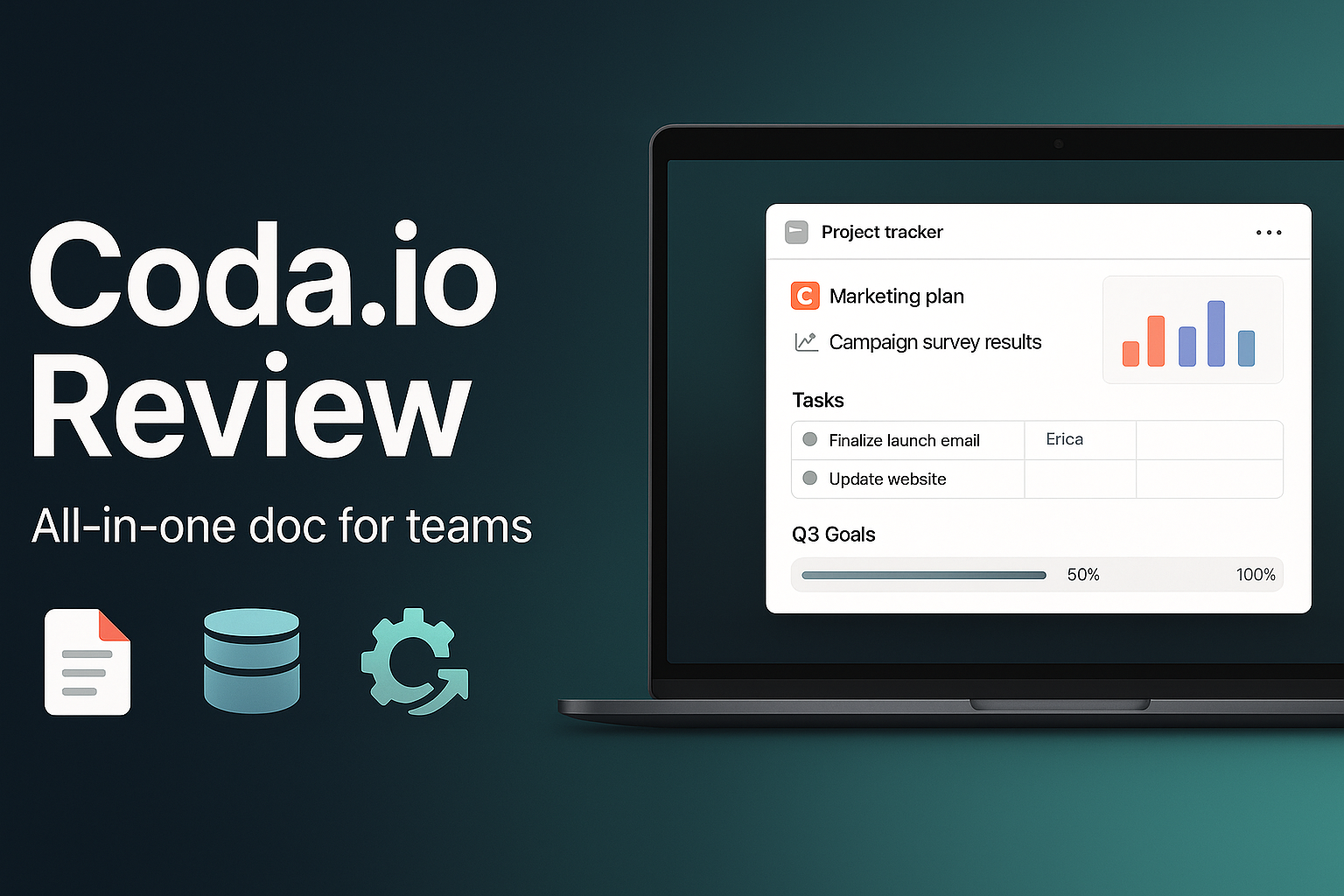
Coda positions itself as an all-in-one collaborative workspace where docs, spreadsheets, apps, and AI come together in a single place. Instead of juggling a doc here, a tracker there, and a dashboard somewhere else, you build one connected workspace where your team actually works, not just stores things.
And if you arrive through a referral, you can usually unlock $10 in Coda credit for signing up, which lowers the risk of trying it properly with your team.
Click Here to get $10 Credit for Signing Up
Let’s dig into what Coda really is, how it works, what it does well (and not so well), and whether it’s genuinely worth adopting for you.
What Is Coda.io, Really?
Coda is a collaborative workspace where a document can evolve into something that behaves like an internal app.
Instead of:
- Docs over here
- Sheets over there
- A separate project tool
- A separate wiki
Coda combines them into one flexible surface.
At a high level, Coda gives you:
- Docs for writing, notes, and narrative
- Tables that behave like databases
- Views & dashboards built on those tables
- Buttons, automations, and workflows
- Integrations with tools your team already uses
- Built-in AI to summarize, draft, and generate insights
It’s used by tens of thousands of teams, including high-profile companies in tech, media, and finance, which signals that it’s not just a toy for hobbyists. Large organizations rely on Coda to coordinate cross-functional work, manage roadmaps, and centralize operations.
In late 2024, Coda was acquired by Grammarly as part of a push to create a broader AI-powered productivity platform, with Coda’s CEO stepping into the CEO role of the combined company. That move underlines how central Coda’s building blocks are to the future of collaborative work.
But how does it actually work, day to day?
The Building Blocks: Docs, Tables, Packs & AI
Docs & Team Hubs
Everything in Coda starts with a doc.
At first glance, it feels familiar: a canvas where you type text, add headings, and drop in lists. But Coda docs are designed to become team hubs, not just static pages.
Inside a single doc, you can have:
- Pages and nested subpages for different topics
- Sections for strategy, notes, and action items
- Embedded views of tables, charts, and dashboards
For example, a product team can run:
- A strategy section with long-form narrative and vision
- A roadmap section where features are tracked in live tables
- A meeting notes section where each squad captures agendas, decisions, and action items
- A launch section tying features to marketing, support, and operations tasks
Coda’s own “team hub” concepts and templates show how to turn one doc into the home base for an entire department. You’re not constantly jumping out to separate tools; you stay in one place and move through pages.
Tables That Behave Like Databases
Coda’s tables look like spreadsheets at first. The difference is how they behave.
Tables in Coda:
- Support relationships between tables (linking rows together)
- Offer multiple views (filtered lists, grouped boards, calendars)
- Use formulas that reference rows, tables, and doc elements
- Sync views so edits in one place update everywhere
Imagine:
- A product roadmap table powering a leadership view, an engineering view, and a marketing view. Each audience sees what they need, but they’re all looking at the same underlying data.
- A content calendar table with views by channel, by owner, and by status, but no more duplicate spreadsheets.
- A hiring pipeline table where each candidate row links to notes, interviews, and feedback inside the same doc.
Instead of having “the doc” over here and “the sheet” over there, Coda embeds the database inside the document. The narrative and the numbers live together.
Packs & Integrations
Coda doesn’t pretend your entire stack disappears. It knows you still use Slack, Jira, calendars, CRMs, design tools, and more.
To connect those tools, Coda uses Packs.
A Pack is Coda’s name for an integration or extension. Packs let you:
- Pull data into Coda
- Push updates back to other tools
- Trigger actions based on changes in Coda
With hundreds of Packs available, you can connect to tools like:
- Slack or Microsoft Teams for notifications and updates
- Jira and other issue trackers for syncing tickets into roadmaps
- Google Calendar to bring schedules into your team hub
- CRMs and analytics to build dashboards inside Coda
For example, you can:
- Automatically create a Jira ticket when a feedback row is added in Coda
- Send a Slack message when a task moves to “Ready for QA”
- Sync your upcoming meetings into a planning doc so the team sees what’s coming up
Instead of constantly switching tabs, Coda becomes the place where information from other tools flows in and out.
Coda AI: The Connected Work Assistant
Coda AI is built into the platform as a “connected work assistant.”
Instead of being a separate chatbot, it sits inside your docs and tables, with full context of your workspace (subject to permissions).
You can use Coda AI to:
- Chat about your doc: Ask questions like “Summarize last week’s meeting notes,” “What are the top three risks in this project?”, or “Draft a status update based on this table.”
- Generate and refine content: Turn rough notes into polished briefs, draft alternative versions of copy, or outline a document from a prompt.
- Use AI columns in tables: Have AI generate summaries, tags, categories, or outreach messages at the row level, across entire tables.
Because AI understands the structure of your doc and tables, it can do more than generic text generation. It can analyze, summarize, and operate on your actual workflows.
Coda has positioned AI as included for Doc Makers on the main plans, rather than a separate add-on, which is a big deal if your team is serious about using AI in day-to-day work.
Where Coda Excels: Practical Use Cases
Coda’s flexibility means it can slot into many kinds of teams. A few typical scenarios:
Product & Engineering Teams
Product teams use Coda for:
- Product hubs: Strategy, specs, research, roadmaps, and launch plans in one place.
- Roadmaps: Tables that connect epics, features, owners, and timelines, with multiple views for different stakeholders.
- Feedback pipelines: Collecting user feedback into a table, tagging it, and connecting it to roadmap items.
Engineering can tie in:
- Jira issues via Packs
- Release checklists inside the same doc as specs
- Automation to notify stakeholders when statuses change
The result is a single place where product, design, engineering, and marketing all reference the same truth.
Marketing & Growth Teams
Marketing teams often use Coda for:
- Campaign planners: Combining doc-style strategy with structured tables for tasks, channels, and budgets.
- Content calendars: A single table powering views by channel, by owner, and by stage, with attached docs for each asset.
- Launch coordination: Aligning product drops, nurture campaigns, social posts, and PR inside one workspace.
They can embed design files, analytics links, and feedback forms directly inside the doc, so the entire campaign runs from a single hub.
Operations, Projects & Leadership
Ops and leadership teams lean on Coda for:
- OKR and strategy docs: Company and team-level goals linked to projects and metrics tables.
- Cross-functional project hubs: Planning, execution, and tracking across departments, with clear ownership and status views.
- Meeting hubs: Repeatable agenda templates, recurring notes, and automated action item tracking.
The key pattern: instead of a separate doc, spreadsheet, and project tool for each initiative, Coda becomes the home base.
Pricing: How Much Does Coda Cost?
Coda’s pricing is different from many collaboration tools because it charges primarily for Doc Makers, not every user.
A Doc Maker is someone who can create new docs and pages. Viewers and editors who only collaborate in existing docs are often free or inexpensive, depending on the plan.
The typical structure looks like:
- Free plan
- No cost
- Good for individuals or small tests
- Unlimited collaborators with some limits on doc complexity, Packs, and automation
- Pro plan
- Affordable per Doc Maker on an annual basis
- Unlocks more Packs, more powerful docs, and better version history
- Ideal for small teams starting to use Coda seriously
- Team plan
- Higher per Doc Maker price, still competitive with other work tools
- Adds advanced workspace features, admin controls, and better governance
- Designed for organizations standardizing on Coda as a core workspace
- Enterprise
- Custom pricing
- Security, compliance, SSO, and robust admin capabilities for large companies
The punchline: if your organization has 3–10 people who build docs and many more who just need to view and collaborate, Coda’s pricing can be very favorable compared to “every seat pays full price” tools.
On top of that, arriving via a referral link can give you $10 of credit just for signing up, which you can use as a cushion when exploring Pro or Team features.
Click Here to get $10 Credit for Signing Up
Pros: What Coda Does Really Well
1. Real All-in-One Capability
Coda doesn’t just bolt tasks onto docs. It truly blends:
- Narrative
- Structured data
- Automations
- Integrations
- AI
…into a coherent whole.
If you’re tired of “docs over here, tracking over there,” the feeling of working in one living workspace is a genuine upgrade.
2. Deep Integrations via Packs
Because Packs can bring data in and push data out, you don’t have to abandon your existing tools. You can knit them together around Coda.
This means:
- Fewer manual exports and imports
- Less copy-paste between systems
- More reliable, live-linked dashboards and trackers
For any team already living in multiple tools (which is most teams), this is a big win.
3. No-Code Apps Without Feeling Like a “Platform”
Many no-code tools feel like developer platforms disguised as drag-and-drop builders.
Coda takes a different tack:
- You start with a doc
- You add a table
- You add buttons, filters, and simple automations
- Over time, your doc “grows up” into an internal app
This doc-first approach feels natural for people who are used to living in documents but want more power without writing code.
4. Built-In AI That Actually Understands Your Work
Coda AI is powerful because it sees:
- Your doc text
- Your tables and relationships
- The context of your workspace
That context allows it to:
- Summarize meetings accurately
- Draft status reports based on live data
- Generate structured outputs (like outreach messages per row) with less prompting
You don’t have to copy and paste text into a separate AI tool. The assistant lives where the work lives.
5. Pricing That Rewards Central Builders
For teams with a clear distinction between “workspace builders” and “collaborators,” Doc Maker pricing is efficient.
Instead of paying full price for every occasional viewer, you invest in a few builders who create powerful docs, and everyone else benefits.
Add the sign-up credit on top, and there’s very little downside to running a real pilot.
Click Here to get $10 Credit for Signing Up
Cons: Where Coda May Not Be a Perfect Fit
1. There Is a Learning Curve
If you only ever want a simple note-taking tool, Coda is too much.
You’ll get the most out of it if someone on your team is willing to:
- Learn how tables, views, and formulas work
- Experiment with Packs and automations
- Act as an internal “Coda champion”
Without that person, your workspace will still work, but you won’t tap into the deeper value.
2. Cloud-First, Not Deeply Offline
Coda is designed as a cloud-based workspace. There are mobile apps and offline support is improving, but it’s not built around a heavy offline desktop workflow.
If your team spends long stretches without reliable connectivity, this might be a limitation.
3. Maker-Heavy Teams Pay More
If everyone in your organization wants to be a Maker, costs can climb.
You’ll want to:
- Be mindful about who actually needs Maker status
- Encourage shared docs and hubs rather than every person spinning up dozens of separate workspaces
That said, compared to stacking multiple specialized tools, Coda still often comes out looking reasonable.
Who Should Seriously Consider Coda?
Coda Is a Strong Fit If…
- Your team is constantly context-switching between docs, spreadsheets, and project tools
- You want a real “source of truth” for goals, projects, and decisions
- You care about AI, but you want it embedded in your actual workflows, not in a separate app
- You can identify at least one person who enjoys designing systems and will embrace being a Coda builder
Startups, product organizations, ops teams, and cross-functional project groups are often the first to see the value.
Coda Might Not Be Worth It If…
- You’re a solo user whose main need is light note-taking and simple lists
- Your organization is locked into another suite and can’t adopt a central tool like Coda
- You’re allergic to any type of workspace design or configuration and just want simple, single-purpose tools
How to Test Coda Without Overhauling Everything
If you’re curious but cautious, here’s a practical approach:
- Pick one high-value workflow.
Choose a use case that’s currently painful: a product hub, a cross-team project, or OKRs that live in too many places. - Rebuild it in Coda.
Use templates and simple tables to get started. Don’t try to replace everything at once. - Connect one or two key tools.
Add Packs for Slack, your calendar, or your issue tracker to see the benefit of integration. - Run a pilot for a month.
For that workflow, tell the team “Coda is the source of truth.” Pay attention to how often people naturally open Coda vs the old tools. - Evaluate.
Ask:- Are we spending less time hunting for information?
- Are decisions easier to track?
- Are updates clearer and more reliable?
The free plan and sign-up credit give you room to run this experiment without a big financial commitment.
Click Here to get $10 Credit for Signing Up
Final Verdict: Is Coda.io Worth It?
If your day currently feels like a relay race between tabs, tools, and “final-final-v3” documents, Coda is absolutely worth a serious look.
It is:
- More flexible than a typical document tool
- More narrative-friendly than a pure database
- More connected than isolated project apps
- More AI-native than legacy wikis
Is it overkill for simple notes? Yes.
Does it demand at least one person who enjoys building systems? Also yes.
But if you’re running real projects with real teams and you want:
- A single place where strategy, execution, and tracking live together
- Integrations that pull your fragmented tools into one coherent view
- AI that can operate directly on your actual work
…then Coda is one of the more compelling options on the market.
The smartest way to answer “Is it worth it?” for your situation is to try it on one meaningful workflow and see if your team naturally gravitates toward it as the place they work.
With the free tier and the extra $10 credit for new signups via referral, the risk is low and the upside is real.